Sunday, March 17, 2019

Animated Video / Chatterpix Kids


My Video Created Using Chatterpix Kids: 
     My ideas on animated videos: Animated video programs like Chatterpix Kids and Puppetmaster can be very beneficial for the classroom. Since I am a social studies teacher, my thoughts about using animated video immediately shift towards bringing historical figures to life. It is much better to learn about a figure from their mouth than the mouth of a lecturer. I think of videos made as rap battles between historical figures with a lot of comedic value that appeals to students. There is just something different about having that visual. It can also be used to bring literature and stories to life as well. Reading can be so much more interesting with a visual component. The video above is a short summary of Toussaint L'Ouverture's significance in history.

     The website that I found on using animated videos in the classroom: I would like to summarize the above website states about using animated videos in the classroom. One big reason for using animated videos is developing the communication skills of students. Some students are scared or bored with face-to-face communication. By making animated videos, they can work on how to best express ideas in a very effective manner that is engaging to the student and utilizes technology. Also, animated pictures can create a stronger connection to learning information (especially with younger ages). Students are able to retain information so much better when they create an association with animated characters. A third benefit of using animated videos is that students develop empathy more strongly when witnessing characters in a story. We are conditioned to really think about the motives, development, and feelings of characters in a movie, cartoon, etc. Therefore, teaching important lessons can be done very effectively through an animated video. Lastly, it involves critical thinking. Students are more apt to thinking critically when all of their senses are engaged. With animated videos, their senses are engaged. 

Tuesday, March 12, 2019

Nearpod App


Image result for nearpod
What is the Nearpod App? 
The Nearpod App serves several purposes. First of all, Nearpod is a collection of online lessons that is accessible to all users. This collection can be searched by topic, subject, or grade level. Teachers who are struggling to create an activity for a particular objective can look for inspiration or rip an entire lesson if the lesson good enough. Second of all, Nearpod can be used to create your own lessons on the app/internet site. You can create slides that have text, images, or upload a website source directly to the slide. Get rid of the wasted time of clicking on a link on your presentation. You can have the website content appear directly on the slide. You can also add questions to check for mastery. You can add a multiple choice question (quiz option), open-ended question, fill in the blank, memory test, 'draw it' feature, and poll. These questions can be added at any point during the presentation for students to complete.Lastly, assign lessons to students and keep track of their progress. You can keep up with the rate at which students answer questions correctly and have a documentation of what their answers were. These lessons have a fantastic formative assessment format so that you can truly engage how effective the lesson was and what objectives (if any) need to be retaught or reviewed. One of the best things about Nearpod is it is usable on multiple devices. It can be accessed via the website, but also accessed by smart phones. 
How would I use the Nearpod App in my classroom?
Image result for formative assessment examplesFirst of all, the most attractive feature of Nearpod and easiest one to use in the classroom is the assessment portion of the presentations. I would definitely utilize this easy way to compile formative assessment data to determine mastery of an objective. Even if my classroom activities were not completely geared towards the Nearpod presentation, I can still utilize the questions to measure mastery. 


Image result for formative assessmentSecond of all, Nearpod provides an easy way to send presentations to students' devices. It is a hassle to upload power points or have to trouble shoot how students are going to utilize programs from the computer on their device and vice versa. With Nearpod, I can upload previously created presentations (ppt) into Nearpod's system and it makes the streamline process much easier when it comes to students viewing presentations on devices. 

Tuesday, February 26, 2019

BYOD?

Image result for BYODWhat is BYOD? - BYOD stands for bring your own device and involves students bringing in devices that they own (phone, tablet, laptop, etc.) to use for classroom use. It is used because of the widespread technology in students' hands and limited budgets for buying and maintaining a one-to-one technology initiative in a school.

Pros:
Image result for byod pros-It puts tools in the hands of students as they are able to do things that they would be unable to do without the device or faster than they would be able to without the device.
-It engages students as they are challenged with activities that are higher on Bloom's taxonomy. The rote memorization can diminish because students can access the info with the push of a button.
-Students are able to collaborate digitally which many are more willing to do than face-to-face collaboration.
-Assessments are easy to grade when they can be graded automatically digitally. There are also means to do formative assessment quickly and easily.
-Using these devices ensures that students are digitally literate which helps better prepare them for 21st century jobs.
-Students are able to take and capture notes without the risk of developing carpal tunnel.
-With digital learning, students have so many tools at their disposal that learning is quicker, more engaging, and more in-depth.

Cons: 
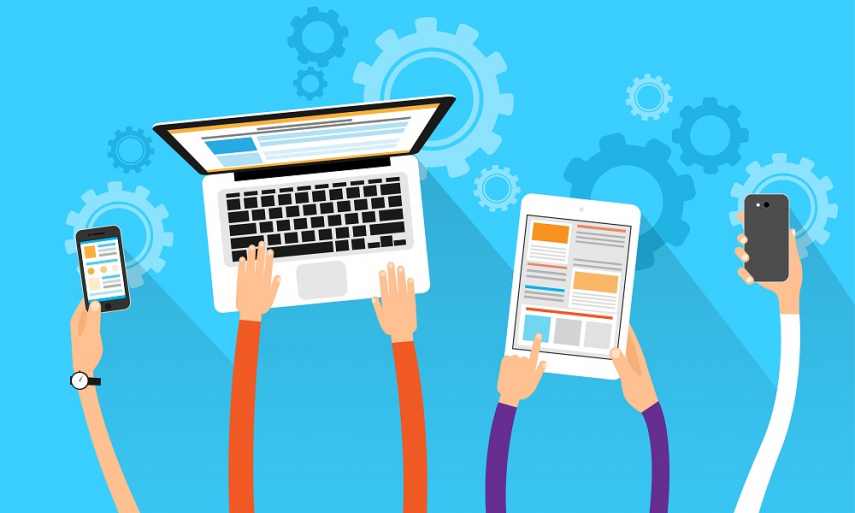
Image result for cons of byod in schools-Distraction - Students can be tempted to access noneducational programs on their phone during class time which prevents them from being engaged in the lesson.
-With phones and devices displayed, it can become a status symbol. Students know who has the latest and greatest device and they also know who has no device at all. It is not as easy to discern this when students are not allowed to get their device out during class.
-Loss or theft of items - Middle school students, especially, will lose anything. By encouraging them to get devices out constantly or bring devices that they normally would not bring, there can be more issues with misplacing items. Unfortunately, theft happens (hopefully on rare occasions) at a school. If there are not cameras in classrooms, then students could fall victim to a thief and their families will be out hundreds of dollars.

My opinion:
Image result for BYOD or nahI like the BYOD set-up and philosophy that goes on at Prattville Junior High School. BYOD issued in conjunction with a device policy. Students are allowed to utilize BYOD when it is used in the teacher's lesson plan. They are essentially only allowed to get out phones when the teacher allows it. When a student takes their phone out at an unauthorized time, their phone is collected and their parents have to pick it up. We rarely have problems with a student for using their phone for non-academic purposes during the school day. BYOD at PJHS is awesome because most students do carry a phone on them at school and it provides an easy way to do research or access applications. We are fortunate to have a chrome book for each department, but that still only leaves you with a 25% chance that you'll be able to use the chromebooks on that day. A one-to-one initiative is a very lofty thought for Prattville Junior High School. It is likely to never happen. We need BYOD to bridge that gap. We have a BYOD network to connect to WiFi at any time which makes it easy with little set up when allowing students to use their devices.

BYOD Management:
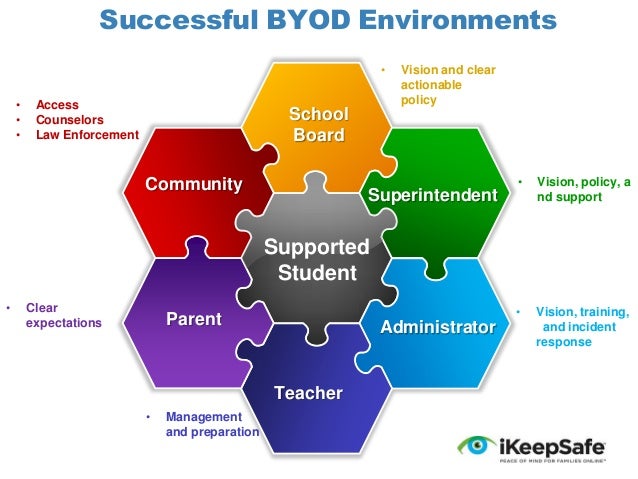
Image result for byod management in schoolsI believe that there should be expectations communicated about how and when it is appropriate to use the devices. I also believe that there should be rules and consequences in place for not meeting these expectations. A clear and unbendable device policy in conjunction with a BYOD policy can run very smoothly. I do think that there should be rules in place that students and parents both sign off on so that it is legal to collect devices. There should also be expectations communicated and rules in place for students who access non-educational programs on their device. If a teacher is not mobile in their classroom, they can miss a lot of these transgressions by students so it does require that a teacher move around in the classroom to monitor student behavior.

Digital Equity and Low Performing Schools:
Image result for digital equityStudies show that the vast amount of students own cell phones. This was not necessarily the case with laptops. Prior to this trend, students from lower income households would not have access to a computer or the internet. There are still lower income houses without wifi. However, the usage in class and for some, outside of school, will bridge the inequality gap a bit. Students can be familiar with how to use technology regardless of income level because they are using it in class. This would lead me to believe that lower performing schools (often lower income) have the opportunity to bridge the performance gap with schools of higher socioeconomic status.

Professional Development and Personal Interest in Technology: 
I believe that BYOD could mean professional development should be more technology oriented. As a teacher, I need to be prepared to demonstrate usage of technology so I need to be exposed to it and able to use it. There are many teachers who are uncomfortable using technology and need to have opportunities to use it in a stress free setting. Schools should have a technology coordinator that is willing to work with teachers and demonstrate usage when necessary. This technology coordinator should be approachable and available. Unfortunately, not all schools utilize technology coordinators in this manner nor give the technology coordinator the tools or time available to accomplish these goals.

Technology/Work in the Future:
To keep up with the demands of industries, post-secondary institutions, etc., students do need to be able to utilize technology to be as prepared as possible for that position. The technology in and of itself can be used to make a person more efficient at doing a job, but its use is also mandatory in some situations.




Monday, February 25, 2019

Wearable Technology

Eye-Sync   
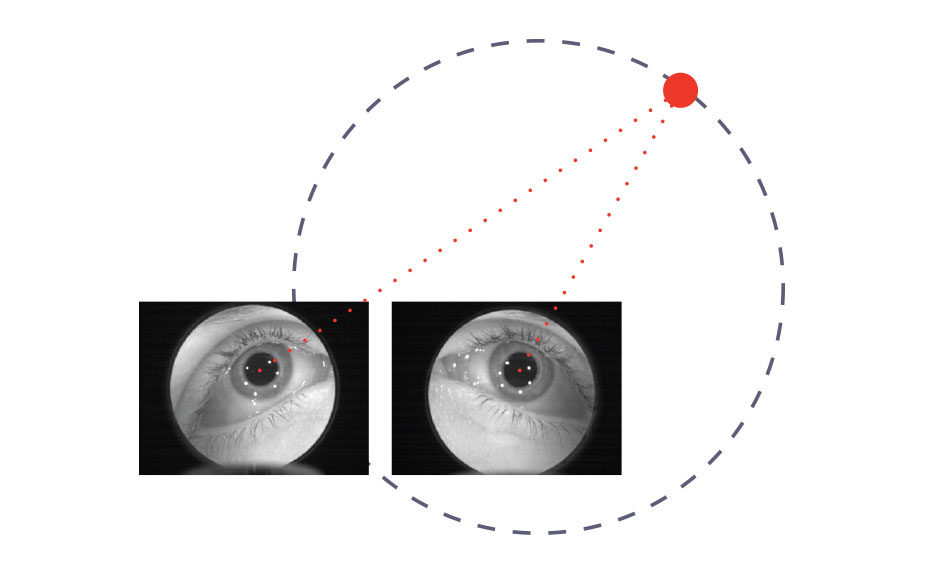
     The first wearable technology that I chose to research is Eye-Sync by Syncthink. Eye-Sync involves testing the user's synchronization or ocular reaction to movement of an object created by the technology in terms of time. It does this by the user wearing a headset with virtual reality technology. After the scan is completed, it relays the information to a tablet, phone, or other device and the data can be saved. If a user has appropriate synchronization, it shows that there is not any visual impairment. However, if synchronization is off, then it shows that the user has some visual tracking issues. This technology is being used by sports programs to quickly check athletes for symptoms of concussion. From personal experience, it is not always easy to check an athlete for a concussion. Just because a student is not vomiting nor has dilated pupils, does not mean that they do not have a concussion. Many athletes don't have too many visual symptoms and will lie about what they are feeling/experiencing. With Eye-Sync, coaches can verify concussion symptoms and look out for the best interest of the athletes. Eye-Sync (Link)

Image result for eye-syncImage result for eye-syncImage result for eye-sync

Lechal GPS Insoles
      Lechal GPS Insoles are a play on smart shoes where they are just insoles that can be moved from shoe to shoe instead of marketing the entire shoe. Lechal Insoles communicate with your smart device using the Lechal app with GPS capability. When a location is inputted in the Lechal app, you can begin your walk or run. The insoles will give you notifications to turn right or left. When needing to turn left, the insole in the left shoe will vibrate and vice versa. There are also checkpoints that you can create along your trip and the Insoles will notify you when you reach these checkpoints. You are also able to mark stops along your way that you may want to revisit using the 'tagging' feature. In addition to the GPS aspect of this device, it also serves as a fitness tracker. You can input goals for step count, calories burned, or distance traveled. Lechal will notify you when you reach any of these goals. Lechal sounds like a great wearable technology for fitness gurus and explorers. It seems like it would be an extremely accurate fitness tracker (actually being on the feet) and has plenty of uses in general health and well-being. Lechal is also being used as an assistive technology device. For those who are visually impaired, lechal is being used to provide direction through the vibrations of the insoles. Lechal (Link)

Image result for lechal gps insolesImage result for lechal gps insolesImage result for lechal gps insoles


Sunday, February 24, 2019

Storybird

Image result for storybird          Storybird is a storytelling website and app that encourages students to write using text and images. Storybird fosters the love of storytelling and the love of reading stories. It allows students to create authentic work and then actually raise classroom funds by selling this work. They can order their work in print and see their abilities as an artist and storyteller. 

How to use: 
1) Register - All you need to register is a valid e-mail address. Fill in the required information and Storybird will send you a confirmation e-mail. This will start your free trial (15 days). If you wish to use Storybird long-term, it costs $8.99 for a month of membership and $4.99 per month if you prepay for a year. 


2) Under 'You' on the menu for Storybird, you are able to do your own reading and writing. You are able to see your earned badges. You are able to see your favorites on your 'book shelf'. This is very similar to what students will see/will be focused on when they use Storybird. 

3) Under 'classes', teachers are able to create classes. One really cool feature on the classroom portion is that you are able to import class rosters from google classroom if you already use that. It is here that you are able to see your classes and view submissions from students. 

4) Under 'challenges', you are able to access premade content that you can assign to students. It is broken down by unit or skill so that you can find items relevant to your course of study. It also gives the suggested age band for each activity. 

5) Under 'read', you are able to read all kinds of items under the categories of comics, flash fiction, picture book, longform story, and blog. There are featured stories on all kinds of topics. 

6) Under the 'write' section, you are given the same categories of writing to choose from and must start by choosing illustrations for your story. You are able to arrange the image for each slide to have text at the bottom, top, left, or right of the picture.